Guides / Hotkeys
Bind a hotkey
Hover the device card or profile pill, click its little keycap badge, then press the combination you want. It works from anywhere, including inside a fullscreen game.
There's no settings screen — the binding lives on the thing it presses
Switchboard has no options dialog, so there's nowhere to hide a list of keyboard shortcuts. Instead, a hotkey is set on the control it's a shortcut for: the card for the device, the pill for the profile.
- Open the flyout and hover the device or profile you want.
- Click the small keycap badge that appears on it.
- Press your combination. It's saved immediately.
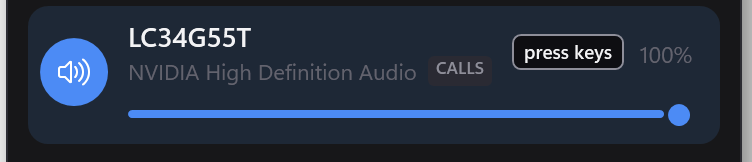
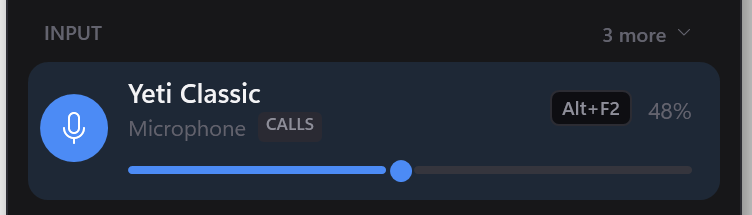
Once bound, the badge shows the combination:
What ships already bound
- Ctrl+Alt+S — open the command palette
- Ctrl+Alt+→ — switch to the next output
- Ctrl+Alt+M — mute or unmute your output
- Ctrl+Alt+K — mute or unmute your microphone
You can rebind or remove any of them the same way. Deleting them all is respected — they don't come back on the next launch.
A combination needs a modifier
You can't bind a bare letter. A global hotkey takes that key away from every other program on your PC, so P on its own would break typing everywhere. Use Ctrl, Alt, Shift or Win with it. The one exception is F13–F24, which nothing else uses — handy if your keyboard software can send them.
If the badge looks faded
That means Windows refused the combination, which almost always means another program already owns it. Nothing is broken; the key just belongs to something else. Pick a different one, or close whatever has claimed it.
Switchboard shows this rather than hiding it, because the alternative is a shortcut that silently does nothing and no way to find out why.
How you know it worked
A hotkey is pressed with the flyout shut, usually over a game, so there's nothing on screen to confirm it. A small pill appears near your tray naming what changed, then fades.
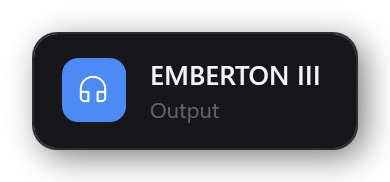
If a switch doesn't take — which Windows very occasionally refuses — the pill says so instead of naming the device.
Where they're stored
%APPDATA%\Switchboard\hotkeys.json. Editing it by hand is supported.