
Guides / Send one app elsewhere
Send one app to a different device
Open the flyout, find the app under APPS, click its row, then click the device you want. Discord can be in your headset while the game stays on your speakers.
Anything currently making sound shows up in the APPS section, with where its audio is going on the right.
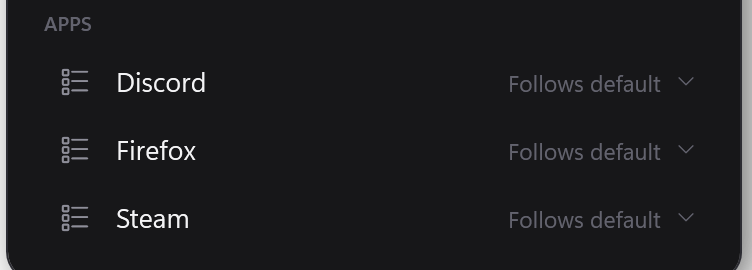
Pinning an app
- Click the app's row. It opens to show every output you have.
- Click the one you want. The row closes and now names that device.
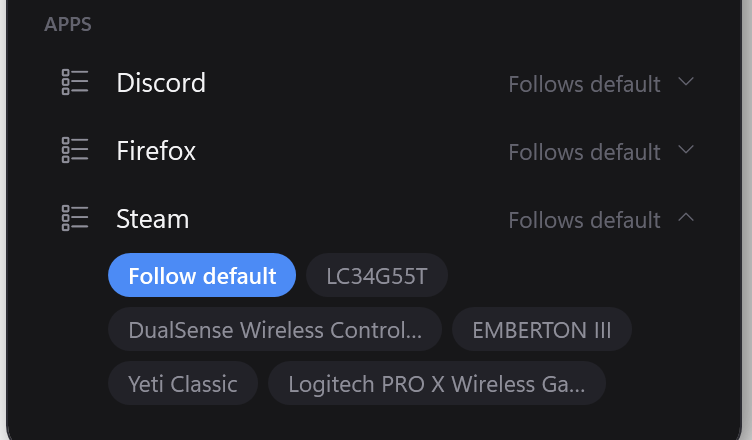
To undo it, open the row again and click Follow default.
The pin sticks to the app, not the window
Routing is stored against the program itself, so closing Discord and reopening it — or restarting your PC — doesn't lose the pin. Windows keeps it, and it applies even when Switchboard isn't running.
Why an app shows a name you don't recognise
Audio belongs to whichever process actually opened the stream, and in a modern app
that's usually a helper rather than the thing you launched — Apple TV plays through
AMPLibraryAgent, the League client through LeagueClientUx.
Showing you those names would be useless, so Switchboard resolves each one back to the
app's real name.
Occasionally two rows end up with the same label, because two different executables genuinely belong to the same app. They stay separate rows on purpose: they route independently, and merging them would silently pin only one of the two.
When a row says "Can't route"
Some processes refuse to be routed and there's no way to know in advance which — you find out by asking. When one refuses, the row says Can't route and stops offering a choice it can't make, rather than pretending and failing quietly.
It's usually one of these:
- The app closed between the list being drawn and you clicking.
- It's running as administrator and Switchboard isn't.
- It's a protected system process.
An app only appears while it's making sound. Windows gives no way to list apps that could play audio — only ones with a live stream. If a program isn't in the list, play something in it and it'll show up within a second.
Faster way
Press Ctrl+Alt+S and type a device name — "Send Discord to EMBERTON III" will be one of the results, without opening anything.