
Guides / Switch your audio device
Switch your audio device
Left-click the tray icon, then click the device you want. That's it — no dialog, no Apply button.
The flyout lists everything Windows can play sound through under OUTPUT, and everything it can record from under INPUT. The device currently in use is the lit one.
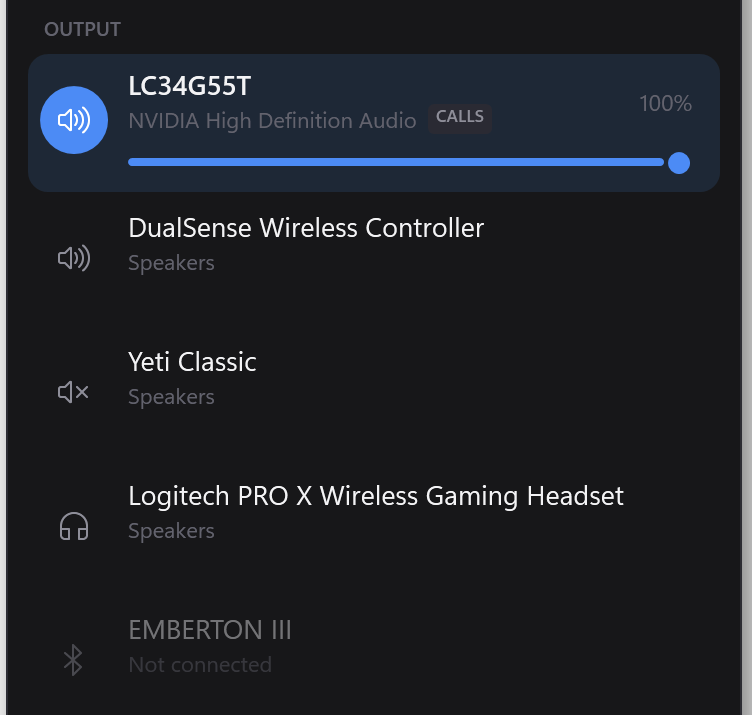
It switches your calls too
This is the part worth knowing, because it's the one thing that makes Windows' own Sound panel frustrating.
Windows doesn't have one default audio device. It has three: Console, Multimedia, and Communications. Voice apps — Discord, Teams, in-game chat — follow Communications. The Sound panel's "Set as default" moves the first two and leaves Communications behind, which is why switching to your headset sometimes moves the game but not your friends' voices.
Switchboard sets all three, every time. A card showing the CALLS tag is the one your voice apps are using.
Volume and mute
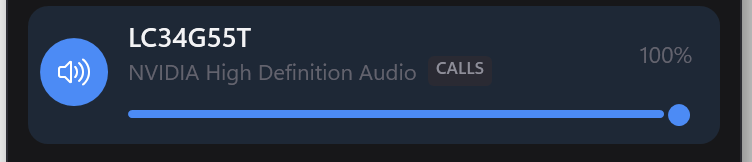
- Drag the slider to set that device's volume.
- Click the speaker icon on the left to mute or unmute it.
- The slider shows on the current device permanently, and on any other device when you hover it — so the window stays short.
Volumes are remembered by Windows per device, so a headset you set to 30% is still at 30% next time you plug it in.
Microphones
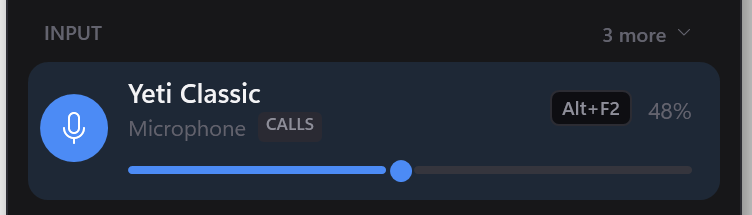
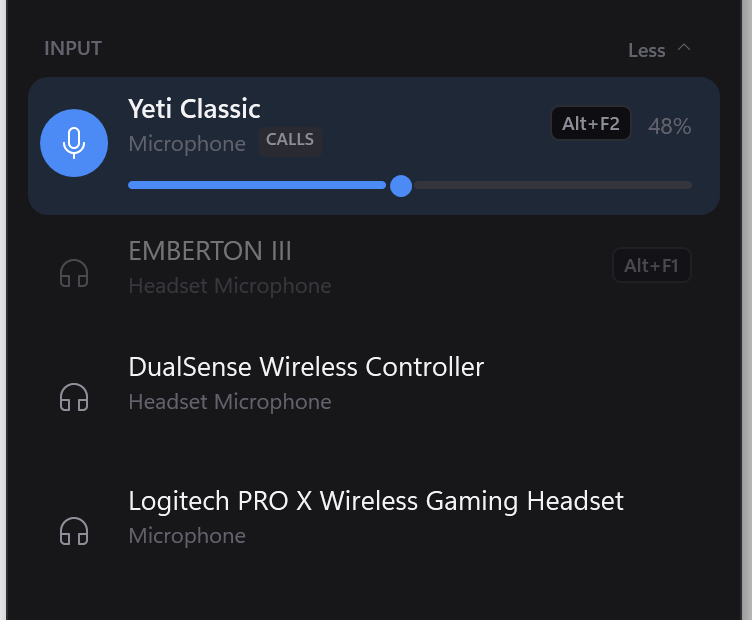
INPUT normally shows just the microphone that's live, with the rest behind a "n more" link in the heading. Most people have several inputs and change them roughly never, so the section stays out of the way until you ask for it.
An app that names a device in its own settings ignores all of this. If Discord is set to "Logitech PRO X" rather than "Default", changing the Windows default won't move it. Set that app back to Default, or use per-app routing instead.
Faster ways
- Bind a hotkey to a device, and switch without leaving your game.
- Press Ctrl+Alt+S and type the device name.
- Ctrl+Alt+Right cycles to the next output. It ships bound.